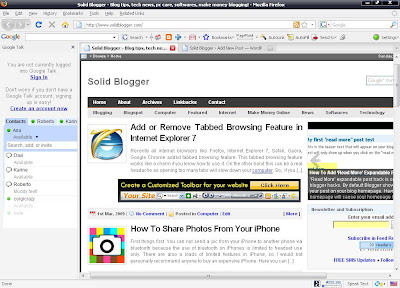
GTalk is one of the most used messaging services on internet. People love GTalk because it’s easy to use and light. GTalk does not use much resources of your system. It’s fast and easy to get installed. And above all, it can integrate all your Gmail and Orkut contacts in one place and that’s why GTalk is getting more popular day by day. After all it’s a Google product, hence it should be also.
Initially Gtalk was not having any invisible option in it. Which means you will get noticed by all your friends once you log in. But later, after a lots of requests from it’s users, GTalk decided to start this invisible feature. But, they started this invisible feature for those who uses GTalk from GMail or Orkut. If you are using GTalk from your desktop, you may not get this facility.

In this post I will guide you with three things that you might find interesting. You can consider these as GTalk tricks. And the three things are:
1. How to know if someone is invisible on GTalk.
2. How to know if someone is offline or not.
3. How to know if someone has blocked you on Gtalk or not.
Lets get started step by step. I am sure, you will have fun reading these Gtalk tricks.
People activate this invisible feature for many reasons. They might be busy or do not want anyone to disturb them. They want to chat with few people they want or they want to stay hidden and contact the persons they wish. I always stay invisible on Gtalk, so that I can talk with the persons I want
Now if you want to fool the people and know about their online status even when they have logged in with invisible feature activated, then this is possible. Poor Gtalk! There are two ways to do this.
• You need to have a GPRS enabled mobile handset.
• Download a free software called gotalkmobile on your handset and install it.
• After the installation, log on to your GTalk account with your login details.
• Now, this will show you the entire online friends list. It does not matter if they are online or invisible.
• In this way you can catch your offline friends as well. The persons who are being shown as offline, are not present on GTalk.
• And you are done above. You will notice those online (visible + invisible) as well as the offline friends.
And the second method is:• Set the chat as off the record with target user. This can be done only when the other user is online.
• Now try sending chat to that user when he is invisible or offline.
• If he is invisible, then he will receive chat.
• But if he Is offline, then you will receive error “ did not receive your chat”.
How to Know if Someone Has Blocked You on Gtalk :
Now this is worth exciting. Few times we notice friends not contacting us for a long time. Even though we send them messages, they never reply us back. It can happen because of three reasons.
1. He/She is avoiding you. (Are you that much notorious?)
2. He/She is offline since a long! (This is a busy world, really!)
3. He/she blocked you on GTalk! (He/she did not find a friend in you!)
Whatever the reson may be, it’s nice to find the reason yourself. Let’s find out the exact reason of not getting a reply back. But for this you need to have PIDGIN and configure it properly. Pidgin is a third party tool, available for free. You can use all your messenger accounts at once using this software. You can talk to your friends using AIM, ICQ, Jabber/XMPP, MSN Messenger, Yahoo!, Google Talk, Bonjour, Gadu-Gadu, IRC, Novell GroupWise Messenger, QQ, Lotus Sametime, SILC, SIMPLE, MySpaceIM, Zephyr etc. Read the below steps properly. • Download Pidgin.
• Go To Accounts –> Manage –> Add.
• It will open a new window Add Accounts.
• From the drop down box choose XMPP as the Protocol.
• In case of Screen name enter your Gmail Id (e.g. – solid.blogger).
• Type gmail.com as the Domain/Server.
• In Resource Field enter Home.
• Type your Gmail Password in the Password Field.
• Choose any Nickname (e.g. – Bapun) as Local alias.
 And you are done with Pidgin settings. Now lets play with Pidgin to find those GTalk contacts who has blocked you. For this follow the below mentioned steps.
1. sign in to GTalk on PIDGIN with your details
2. Go to Buddies –> Show Offline Buddies (The person who has blocked you is being shown as offline to you. So, in this way you can catch him.)
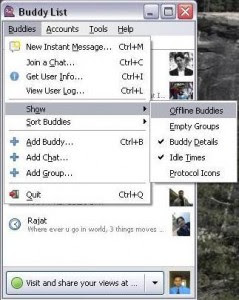 3. Now all available contacts will be visible to you. Select any one contact from that list.
4. Right click on that selected contact, and click on Get Info.
 5. Now here is the twist. Clicking on Get Info will show the brief profile of the person. But now if the person has blocked you on Google Talk, you won’t be able to see his/her full profile. You can’t even see his/her profile name.
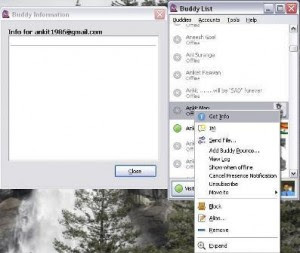 This is the best way to know if someone has blocked you on google talk or not. If he has blocked you, then he will appear to you forever. I guess this the best way to find the person who is either offline or invisible or has blocked you on google talk. Also read How To Use Gtalk In Firefox Sidebar.
(From: Solid Bloggr)

 s one of my favourite online messengers. But like other web messengers it does not allow to use more than one user ID and chat using both user IDs at the same time. You have to use one Gtalk user ID at a time, sign out and then login with another user ID. Since I have two Gtalk user names, I was always looking to get logged in with my two user names at the same time. And finally I found a trick to use multiple Gtalk IDs at the same time. You can open two Gtalk messengers, login with two different IDs and talk at the same time from a single computer.
 s one of my favourite online messengers. But like other web messengers it does not allow to use more than one user ID and chat using both user IDs at the same time. You have to use one Gtalk user ID at a time, sign out and then login with another user ID. Since I have two Gtalk user names, I was always looking to get logged in with my two user names at the same time. And finally I found a trick to use multiple Gtalk IDs at the same time. You can open two Gtalk messengers, login with two different IDs and talk at the same time from a single computer.